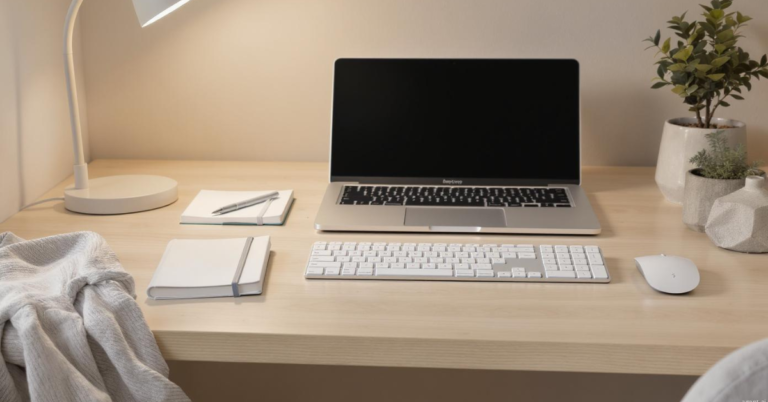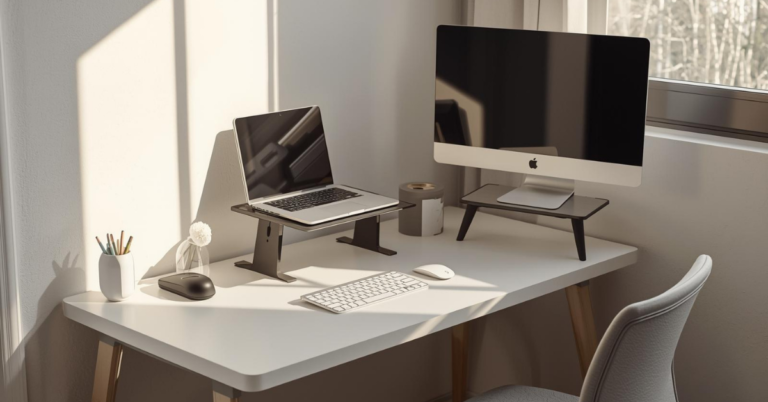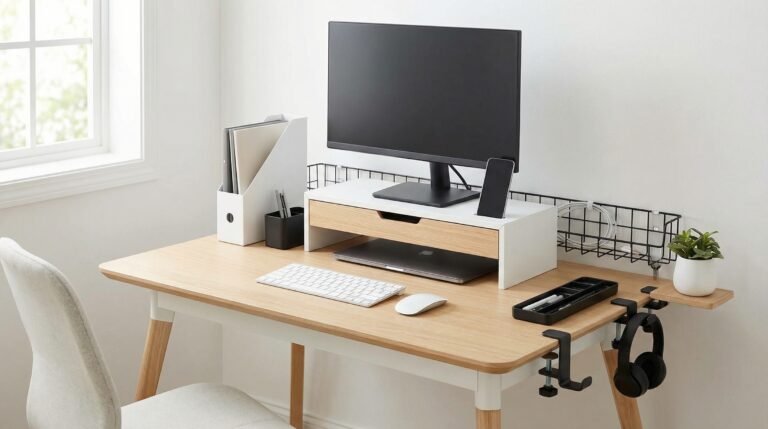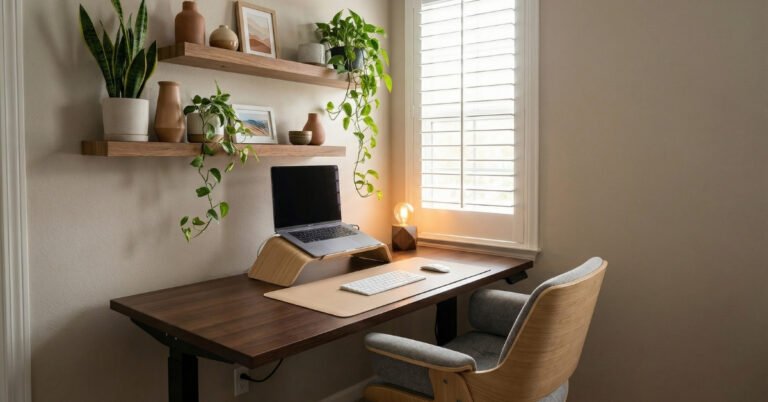
What is the best ergonomic desk setup for home?
Most people don’t think about their ergonomic desk setup until something starts hurting. You notice the tightness in your shoulders first. Maybe it’s a dull ache in your lower back that shows up around 3 PM. Or that burning sensation between your shoulder blades that makes you want to stand up and walk circles around your apartment.
I spent three years working from a kitchen table before I realized why I felt exhausted by noon. It wasn’t the work. It was the way I was doing it.
The thing about ergonomic desk setup is that it sounds technical and expensive. Like you need a $2,000 chair and a standing desk with memory presets. But that’s not where good ergonomics starts. It starts with understanding how your body actually works when you’re focused on a screen for hours.
Your body isn’t designed to hold one position all day. Yet most home offices are built around exactly that, static, rigid, one-size-fits-all arrangements that ignore the fact that you’re a human who moves, shifts, and changes posture throughout the day.
The best ergonomic desk setup isn’t about buying the most expensive gear. It’s about removing the friction between you and your work. When your setup fits your body, you stop thinking about your body. You just work.
And that’s the goal.
Start With the Right Ergonomic Foundation
If your desk setup feels uncomfortable, distracting, or tiring by mid-day, it’s usually because one or two core pieces are working against you. A well-chosen ergonomic desk setup doesn’t need to be complicated—it just needs to support how you actually work at home. The right basics can remove tension before it starts.
Explore Ergonomic Desk Essentials
Contents
- 1 The Foundation: Your Desk Surface and How You Use It
- 2 The Chair: Your Most Important Investment
- 3 Monitor Position: The Detail That Saves Your Neck
- 4 Keyboard and Mouse: Small Details, Big Impact
- 5 Lighting: The Overlooked Ergonomic Factor
- 6 Cable Management and Clutter: The Psychology of Space
- 7 Movement and Variation: The Real Secret
- 8 Adapting to Small Spaces and Real-World Constraints
- 9 Building Your Setup Over Time
- 10 When to Seek Professional Help
- 11 The Mindset Shift: From Setup to Sustainability
- 12 Comfort Is the Ultimate Productivity Hack
The Foundation: Your Desk Surface and How You Use It
Let’s start with the surface you’re actually working on.
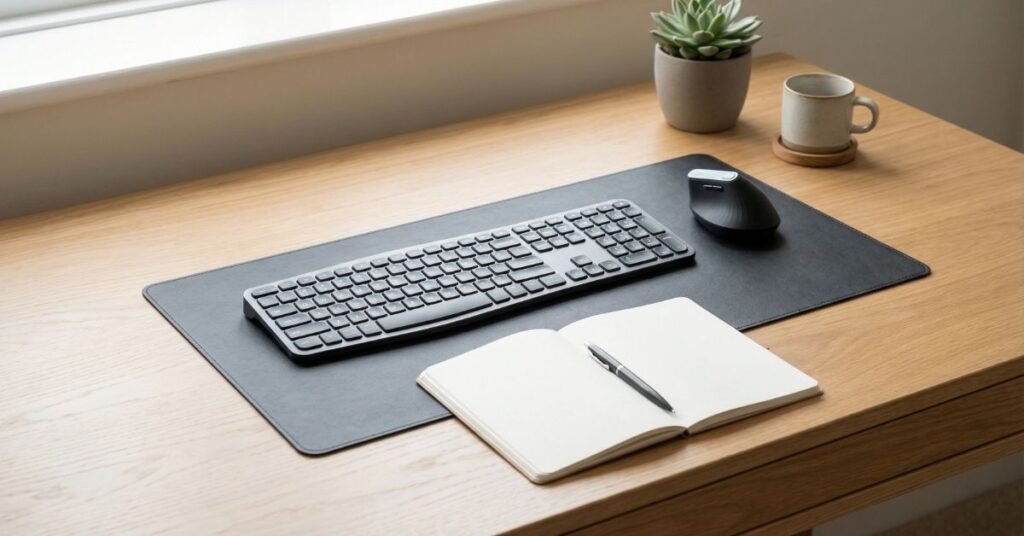
Most people underestimate how much desk depth matters. If you’re working on a shallow surface, say, 20 inches or less, you’re forced to position your monitor too close to your face. That creates eye strain and pushes you into a hunched posture.
Ideal desk depth of around 30 inches. This gives you enough space to place your monitor at arm’s length while keeping your keyboard and mouse at a comfortable reach. You shouldn’t have to stretch forward to type, and you shouldn’t feel like the screen is in your lap.
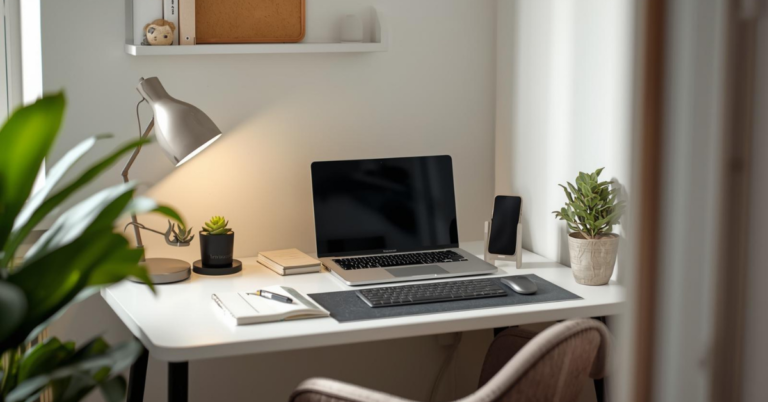
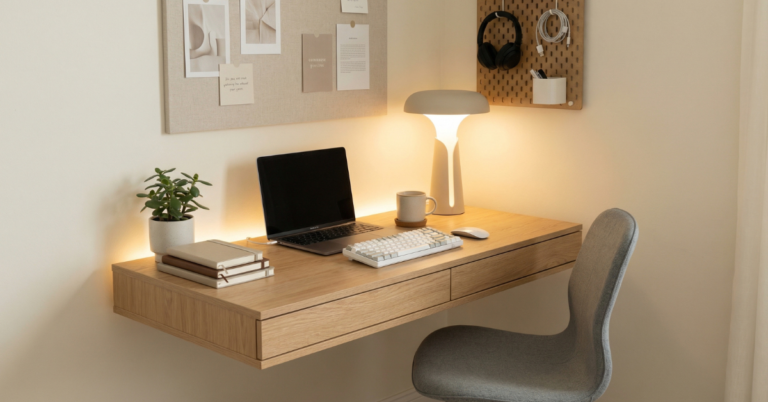
If you’re working with a smaller space (and many apartment dwellers are), you have options. Wall-mounted desks can provide good depth without eating floor space. Even a dining table can work temporarily if you position yourself correctly.
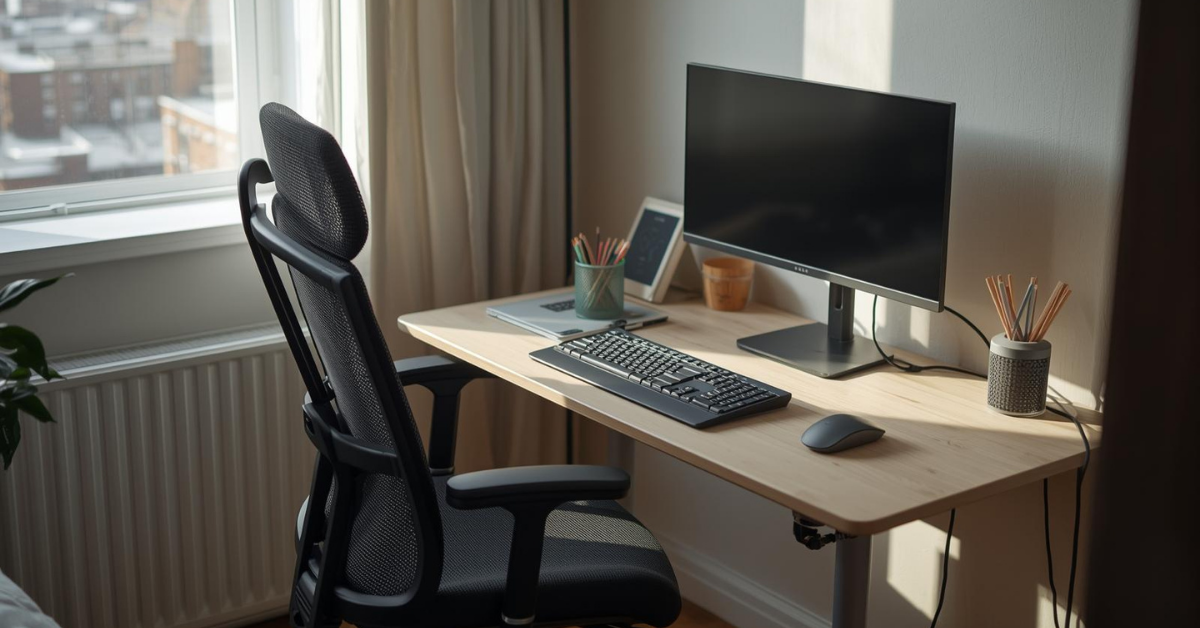
Height is the next critical factor. Your elbows should rest at roughly 90 degrees when typing. If your desk is too high, you’ll shrug your shoulders. Too low, and you’ll hunch forward. Both create tension that compounds over hours.
Here’s a simple test: sit in your chair with your feet flat on the floor. Bend your elbows to 90 degrees. Your forearms should rest comfortably on the desk surface without raising or dropping your shoulders. If they don’t, you need to adjust something.
For fixed-height desks, this might mean raising your chair and using a footrest. For adjustable desks, set the height so your elbows hit that 90-degree sweet spot. The adjustment takes two minutes but saves you months of discomfort.
Your Desk Surface Sets the Tone for Everything
A desk that’s too small, too high, or poorly laid out creates friction all day long. Choosing a surface that fits your space, and how you use it, can instantly improve posture, focus, and comfort. Even small adjustments here can make the rest of your setup feel more natural.
See Practical Desk Options for Home Offices
The Chair: Your Most Important Investment
I used to think any chair was fine as long as it had a back. Then I spent six months with chronic hip pain that made sitting feel like punishment.
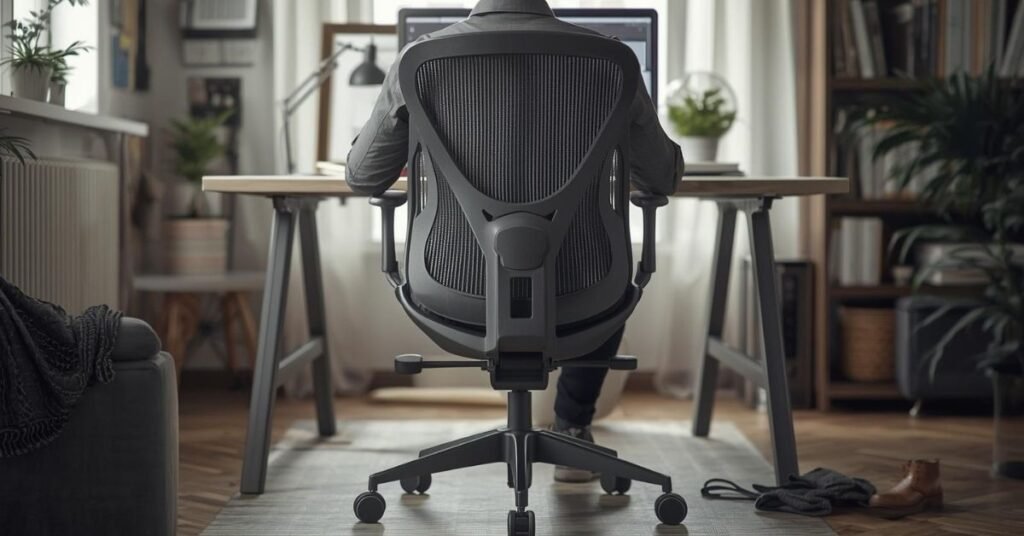
Your chair is where you spend 90% of your workday. It matters more than your monitor, more than your keyboard, more than that trendy desk lamp you bought because it looked good on Instagram.
A good ergonomic chair supports the natural curve of your spine. Look for adjustable lumbar support that hits your lower back right where it curves inward. Too high, and it pushes you forward. Too low, and your lower back collapses into a C-shape that strains your discs.
Seat depth matters too. You should have about two to three fingers’ width of space between the back of your knees and the seat edge. If the seat is too deep, it cuts off circulation to your legs. Too shallow, and you don’t get enough thigh support.
Armrests are controversial in ergonomic circles, but I find them essential for preventing shoulder elevation. The key is adjustability. Your arms should rest lightly on the pads without lifting your shoulders or forcing your elbows out wide. Think T-rex arms—close to your body, relaxed.
If you’re on a budget, the IKEA Markus or HON Exposure offer solid ergonomics without the premium price tag. If you can invest more, the Steelcase Leap or Herman Miller Aeron are worth every penny for people who sit 6+ hours daily.
But here’s the truth: even a basic chair can work if you adjust it properly. Most people never adjust their chairs beyond height. Take ten minutes to dial in the lumbar support, seat depth, and armrest height. You’ll feel the difference immediately.
The Chair That Carries Your Whole Workday
If there’s one place to prioritize comfort, it’s your chair. The right chair supports your lower back, keeps your hips aligned, and helps you stay comfortable without constant shifting. This is one upgrade you’ll feel every single day.
Find Chairs That Support Long Work Sessions
Monitor Position: The Detail That Saves Your Neck
Neck pain from desk work rarely comes from the neck itself. It comes from looking down.
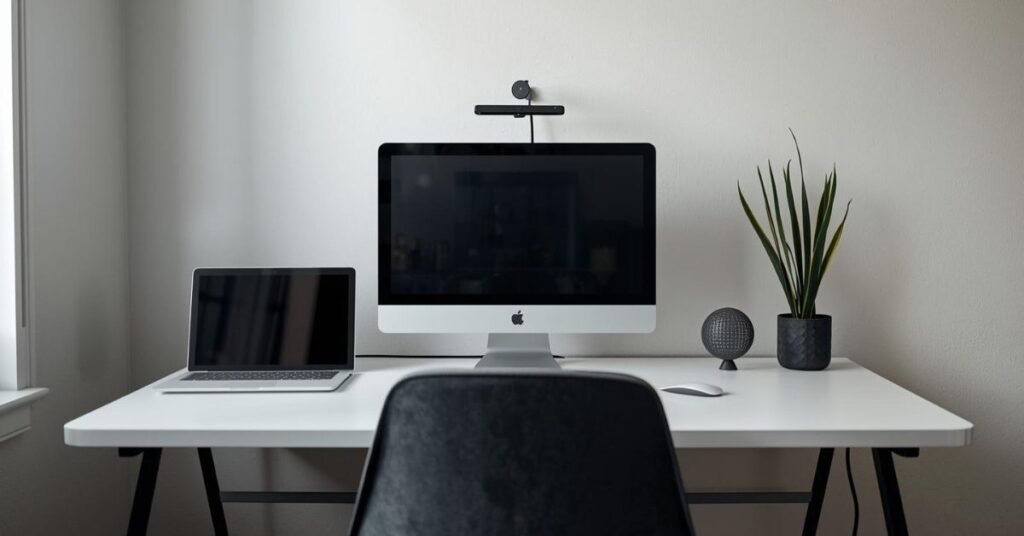
When your monitor is too low, your head tilts forward. For every inch your head moves forward, it effectively doubles in weight due to leverage. A 12-pound head becomes 24 pounds of force on your cervical spine. No wonder your neck hurts by Thursday.
Your monitor should sit so the top of the screen is at or slightly below eye level. This keeps your head in a neutral position, balanced over your spine. You shouldn’t have to look up or down to see your work.
Distance matters too. Arm’s length is the general rule, about 20 to 28 inches, depending on your vision and screen size. If you find yourself leaning forward to read text, increase the font size or move the monitor closer. Leaning creates a chain reaction of poor posture that affects your entire back.
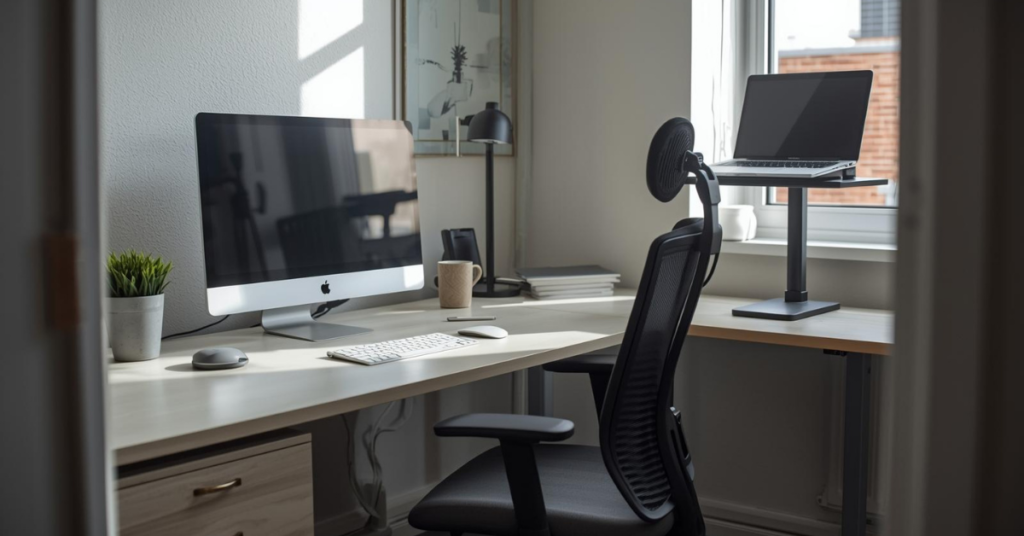
For laptop users, this is where most setups fail. The screen is too low and too close. The easiest fix is a laptop stand paired with an external keyboard and mouse. This raises your screen to proper height while keeping your input devices at comfortable arm level.
If you use multiple monitors, position your primary screen directly in front of you. Secondary monitors should angle slightly toward you, not sit perpendicular to your main view. Turning your head repeatedly to check a side screen creates asymmetrical strain that builds over time.
Blue light filters and anti-glare coatings help with eye strain, but position matters more than technology. A well-placed basic monitor beats a poorly placed 4K display every time.
Fix Screen Height Before It Becomes a Problem
Most neck and shoulder tension comes from screens that sit too low or too close. A simple adjustment to monitor height or distance can reduce strain almost immediately. It’s one of the easiest ergonomic improvements you can make.
View Monitor Stands and Risers That Actually Help
Keyboard and Mouse: Small Details, Big Impact
Your hands do thousands of repetitive movements every workday. Small inefficiencies become major problems over months and years.
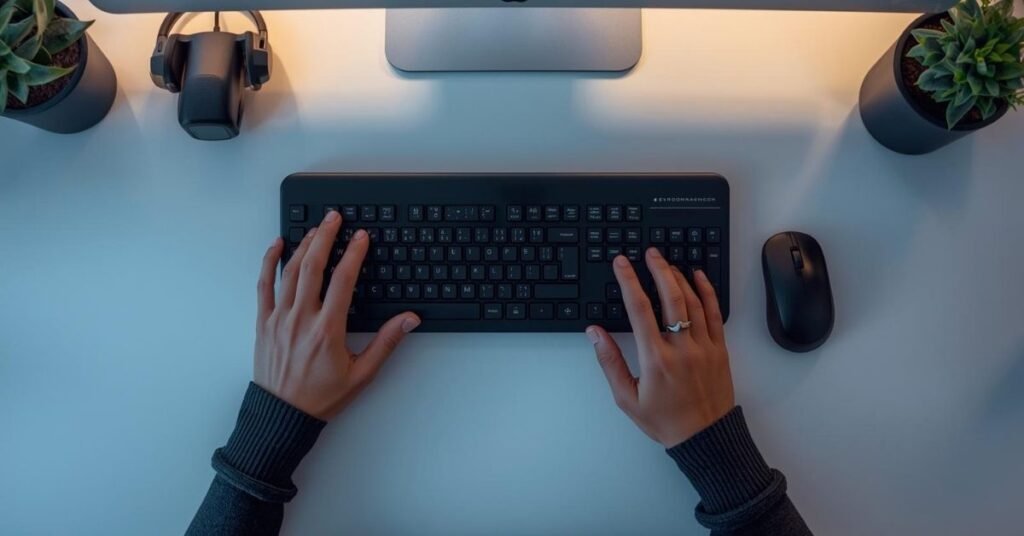
Keyboard position is straightforward but often ignored. It should sit so your elbows stay at 90 degrees and your wrists remain straight—not bent up, down, or sideways. Your shoulders should stay relaxed, not hunched or elevated.
A wrist rest can help, but use it correctly. Rest your palms on it, not your wrists. Pressuring the underside of your wrist compresses the carpal tunnel and can contribute to nerve issues. Think of the rest as a palm support, not a wrist support.
Mouse position follows the same logic. It should sit at the same height as your keyboard, close enough that you don’t have to reach. Your arm should move the mouse from the shoulder, not just your wrist. Small wrist movements for precision are fine, but the gross movement should come from your larger arm muscles.
If you feel tension in your forearm or wrist, consider a vertical mouse. These position your hand in a “handshake” grip that reduces pronation (palm-down rotation), which compresses forearm tissues. They’re weird for about three days, then you forget you ever used a regular mouse.
For keyboard enthusiasts, mechanical keyboards with tactile switches reduce the force needed to register keystrokes. Less force means less fatigue. But even a basic membrane keyboard works fine if you don’t pound the keys.
The real key is consistency. Your input devices should live in the same spot every day. Hunting for your mouse or adjusting your keyboard position constantly creates micro-adjustments that add up to macro discomfort.
Your Hands Deserve Better Positioning
When your keyboard and mouse don’t match your posture, strain builds quietly over time. Ergonomic designs help keep your wrists neutral and your movements efficient—especially important if you work long hours at a desk.
Browse Ergonomic Keyboards and Mice
Lighting: The Overlooked Ergonomic Factor
Bad lighting doesn’t just strain your eyes. It makes your entire body tense.
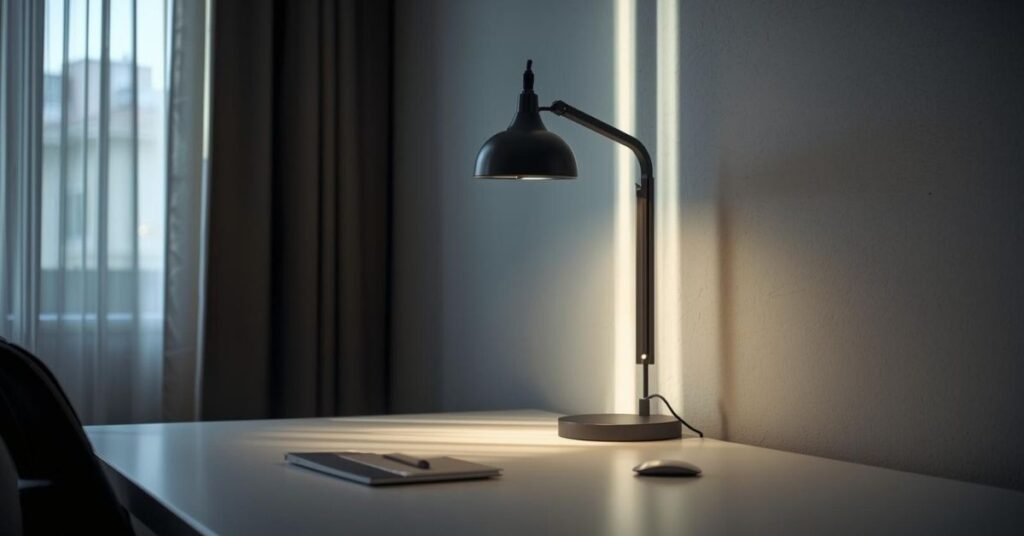
When screens are significantly brighter than your surrounding environment, your pupils constantly adjust. This creates eye fatigue that leads to squinting, forward head posture, and shoulder tension as your body compensates for visual strain.
The goal is balanced lighting. Your screen shouldn’t be the brightest thing in your field of vision, nor should it compete with harsh glare from windows or overhead lights.
Position your desk perpendicular to windows when possible. This gives you natural light without direct glare on your screen. If you face a window, the brightness difference between your screen and the view outside forces your eyes to work overtime. If you face away, you deal with reflections.
Overhead lighting should be diffused and indirect. Harsh downlights create shadows and contrast that make your eyes work harder. A desk lamp with adjustable brightness and color temperature fills in shadows without adding glare.
I use a simple rule: if I can see my reflection in the screen, the light is wrong. Adjust until the screen looks like a window into your work, not a mirror of your environment.
Color temperature matters for circadian rhythm. Cool light (blue-white) keeps you alert but can disrupt sleep if used late. Warm light (yellow-white) is easier on the eyes in evening hours. Adjustable lamps let you shift with the day, matching your lighting to your natural energy patterns.
Good Lighting Reduces More Than Eye Strain.
Poor lighting affects focus, posture, and energy levels more than most people realize. A well-placed desk light can ease eye fatigue, improve concentration, and make long work sessions feel noticeably lighter.
Upgrade Your Desk Lighting Setup
Cable Management and Clutter: The Psychology of Space
Physical clutter creates mental clutter. It’s not just an aesthetic issue, it’s an ergonomic one.
When your desk is messy, you lose track of where things are. You reach awkwardly for your phone. You shift papers around to find your notebook. These small, repetitive movements pull you out of good posture and create micro-strains.
Cable management is the foundation of a clean desk. Cables that dangle, tangle, or pull create resistance when you move. They limit how you can position your devices. They collect dust and visual noise.
Start with cable clips or a cable tray under your desk. Route power cables and USB cords so they drop straight down from your devices, not across your work surface. Use velcro ties to bundle related cables together. Label your cords at both ends so you’re not tracing wires when you need to unplug something.
Beyond cables, apply the “within arm’s reach” rule. Items you use multiple times per hour, phone, notebook, coffee, should sit close enough that you don’t have to extend or rotate to grab them. Items used daily but not hourly can sit further back. Everything else goes in a drawer.
This kind of setup removes friction from your workday. You stop thinking about where things are. You just reach, and they’re there.
If your desk feels cramped or distracting, this is the easiest fix. Clear the surface. Keep only what you need for the current task. Your posture will improve because you won’t be navigating around obstacles.
Clear the Desk, Clear Your Head
Visual clutter creates mental clutter. Simple cable management and space-saving desk accessories can instantly make your setup feel calmer and more intentional—without hiding everything or over-organizing.
Discover Simple Desk Organization Solutions
Movement and Variation: The Real Secret
Here’s what most ergonomic guides get wrong: the best position is your next position.
No matter how perfect your setup, holding any posture for hours creates problems. Your body needs movement. It needs variation. It needs you to shift, stand, stretch, and change angles throughout the day.
If you have the space and budget, a sit-stand desk is valuable not because standing is better than sitting, but because it lets you alternate. I switch positions every 45 to 60 minutes. Standing in the morning when my energy is high, sitting after lunch when I need to focus, standing again in late afternoon to combat the post-lunch slump.
Without a standing desk, you can still create variation. Set a timer to stand and stretch every hour. Take phone calls while walking around your apartment. Use a high surface like a kitchen counter for short standing sessions.
The key is avoiding static positions. Even perfect ergonomic posture becomes problematic if held for four hours straight. Your intervertebral discs need the pressure changes that come from movement. Your muscles need blood flow that sitting alone doesn’t provide.
Micro-movements help too. Shoulder rolls while reading. Ankle circles during video calls. These aren’t exercise—they’re maintenance. They keep tissues lubricated and nerves gliding smoothly.
Small changes like this make long work sessions more comfortable. Not because you’re in the perfect position, but because you’re never in one position long enough for it to become a problem.
Build a Setup You Can Maintain
The best ergonomic desk setup isn’t the most expensive or stylish, it’s the one you can live with every day. Choosing practical, supportive tools makes it easier to stay comfortable long-term and adjust as your needs change.
Create a Desk Setup That Grows With You
Adapting to Small Spaces and Real-World Constraints
Most ergonomic advice assumes you have a dedicated home office with four walls and a door. Reality is different.
Maybe you’re working from a studio apartment. Or your “office” is a corner of your bedroom. Maybe you share space with a partner who also works from home.
Good ergonomics works with your constraints, not against them.
In small spaces, prioritize the elements that matter most: chair quality, monitor height, and keyboard position. These three have the biggest impact on your body. Everything else is optimization.
Use vertical space. Wall-mounted monitors free up desk surface. Floating shelves hold reference materials without consuming work area. A narrow console table can become a standing desk when you need variety.
If you must work from a couch or bed occasionally, use a lap desk to create a stable surface for your laptop. It’s not ideal for daily use, but it beats balancing a computer on your knees.
For shared spaces, consider a rolling cart that holds your work essentials. When work ends, you roll it into a closet. When work begins, you roll it out. It creates boundaries in spaces that don’t have them built in.
The goal isn’t perfection. It’s sustainability. A setup you can maintain for months and years without breaking down physically or mentally.
Building Your Setup Over Time
You don’t need to buy everything at once. In fact, you shouldn’t.
Start with the chair. It’s your foundation. Save for a good one, or find a used quality chair on marketplace sites. A $50 used Steelcase beats a $200 new big-box special.
Next, address monitor height. A stack of books works temporarily. A proper stand works better. This is a $20 to $100 fix that pays immediate dividends.
Then keyboard and mouse. If you’re on a laptop, the external input devices become essential for long-term comfort. You don’t need to spend much—basic wired models work fine.
Lighting comes next. A good desk lamp transforms how you feel at 4 PM on a gray Tuesday.
Finally, consider the desk itself. If your current surface is the wrong height or too shallow, upgrade when you can. But don’t rush. A good chair at a mediocre desk beats a mediocre chair at a perfect desk.
Build incrementally. Test each change for a week before adding the next. Your body needs time to adapt, and you need time to notice what actually helps versus what just feels different.
When to Seek Professional Help
Sometimes DIY adjustments aren’t enough.
If you have persistent pain that doesn’t improve with ergonomic changes, see a physical therapist or occupational therapist. They can identify specific movement patterns or structural issues that generic advice can’t address.
Numbness, tingling, or weakness in your hands or arms requires medical attention. These can indicate nerve compression that needs professional treatment, not just better posture.
Remember that ergonomics reduces risk but doesn’t eliminate it. If you have underlying conditions, arthritis, previous injuries, structural variations, you may need personalized guidance.
Don’t push through pain thinking you just need to adjust better. Pain is information. Listen to it.
The Mindset Shift: From Setup to Sustainability
The best ergonomic desk setup is one you’ll actually use.
It doesn’t matter how perfect your measurements are if you find the space depressing or uncomfortable. Your environment affects your psychology, which affects your posture, which affects your body.
Create a space you want to spend time in. Not because it looks like a magazine spread, but because it functions for your specific work and life.
Add a plant if greenery calms you. Use a color you like for your mouse pad. Keep a photo that makes you smile within view. These aren’t ergonomic factors in the technical sense, but they create an environment where good posture comes naturally.
Your desk setup should fade into the background. When it’s working, you don’t think about it. You think about your work, about your ideas. You think about the conversation you’re having or the problem you’re solving.
That’s the real measure of good ergonomics. Not the angle of your elbows or the height of your monitor, but the fact that you can forget about your body and focus on what matters.
Comfort Is the Ultimate Productivity Hack
After years of tweaking, upgrading, and adjusting, I’ve learned that the best ergonomic desk setup prioritizes comfort over aesthetics, usability over trends, and working with the space you have instead of fighting against it.
You don’t need a showroom-worthy office. You need a space that supports your body through long days without breaking it down. A space that lets you focus on your work instead of your discomfort.
Start with the fundamentals: chair, monitor height, keyboard position. Address lighting and clutter. Build in movement and variation. Adapt to your constraints rather than wishing them away.
The perfect setup doesn’t exist. But a setup that’s good enough, sustainable enough, and comfortable enough? That’s available to anyone willing to think deliberately about how they work.
Your body will thank you. Your focus will improve. And your work will benefit from a foundation that doesn’t leave you exhausted before the day begins.
Build it piece by piece. Adjust as you learn. And remember that the goal isn’t ergonomic perfection, it’s a workday that ends with energy left for the rest of your life.
What’s the biggest challenge you’re facing with your current desk setup? Sometimes the smallest adjustment makes the biggest difference.